We’ve upgraded our login system to provide stronger security, better reliability and a simpler sign-in experience.
This guide explains how to log in to the Pulsifi app to access the Talent Hub and My Career using our updated login experience. It covers key login scenarios, including password resets, first-time login and two-factor authentication (2FA). Please ensure you use the work email address associated with your Pulsifi account.
Before You Start
To access your account:
If you use email and password, start by resetting your password (see Section 1)
If you use Single Sign-On (SSO), log in using your company credentials (see Sections 2 and 3)
1. Reset Your Password (For Existing Users)
If you already have a Pulsifi account and log in using email and password, you’ll need to reset your password once to access your account due to our recent login system upgrade.
You can also follow these steps if you’ve forgotten your password.
Steps
Go to the Pulsifi login page.
Enter your work email address and click Continue.
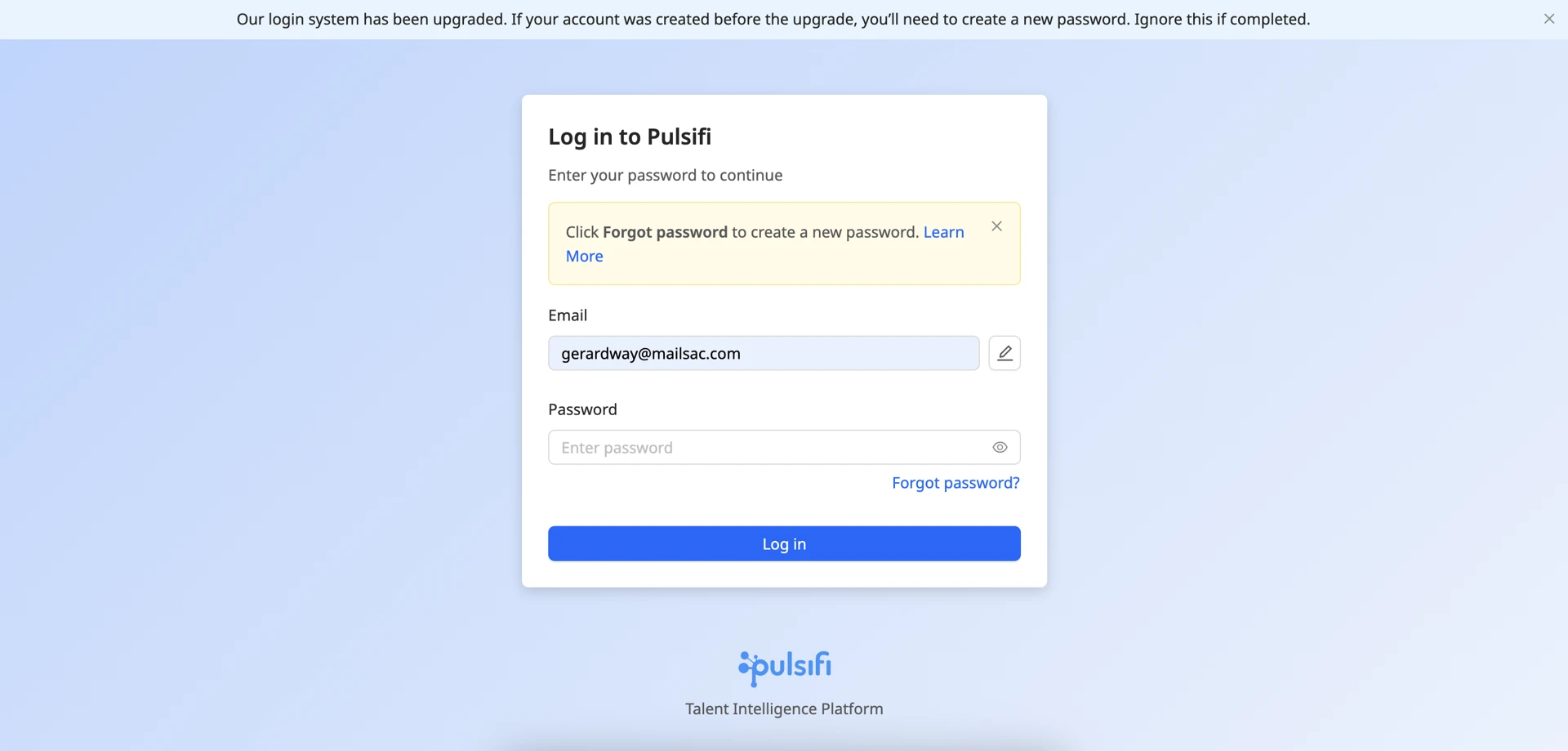

Click Forgot Password.
Enter your work email address again and click Request Code.
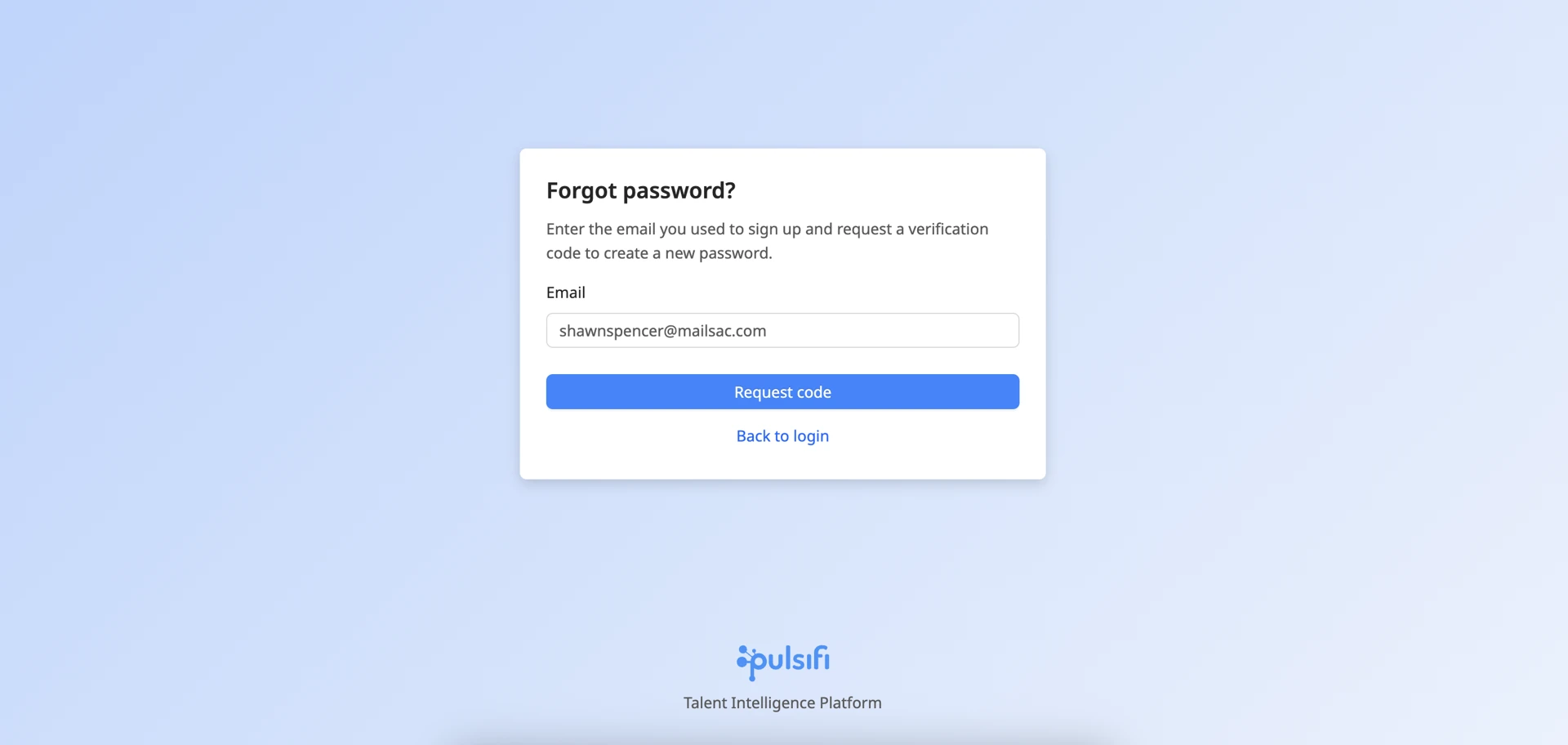

Check your email for the verification code.
Enter:
Verification code
New password
Confirm new password
Click Set Password.
You will be redirected to the login page to sign in with your new password.
Didn’t receive the email?
Check your spam or junk folder
Make sure you entered the correct work email address
If you’re new to Pulsifi, use your invitation email to set up your account instead
Note: If your email is managed by an organization using SSO, you may need to contact your company administrator.
2. First-Time Login (New Accounts Only)
If this is your first time logging in, you will first receive an email invitation from Pulsifi.
2.1 First-Time Login (SSO Users - Passwordless)
Some organizations use Single Sign-On (SSO), which means you log in using your company account credentials (e.g., Microsoft or Google) and do not need a Pulsifi password.
Steps
Open the login invitation email sent from your company via Pulsifi.
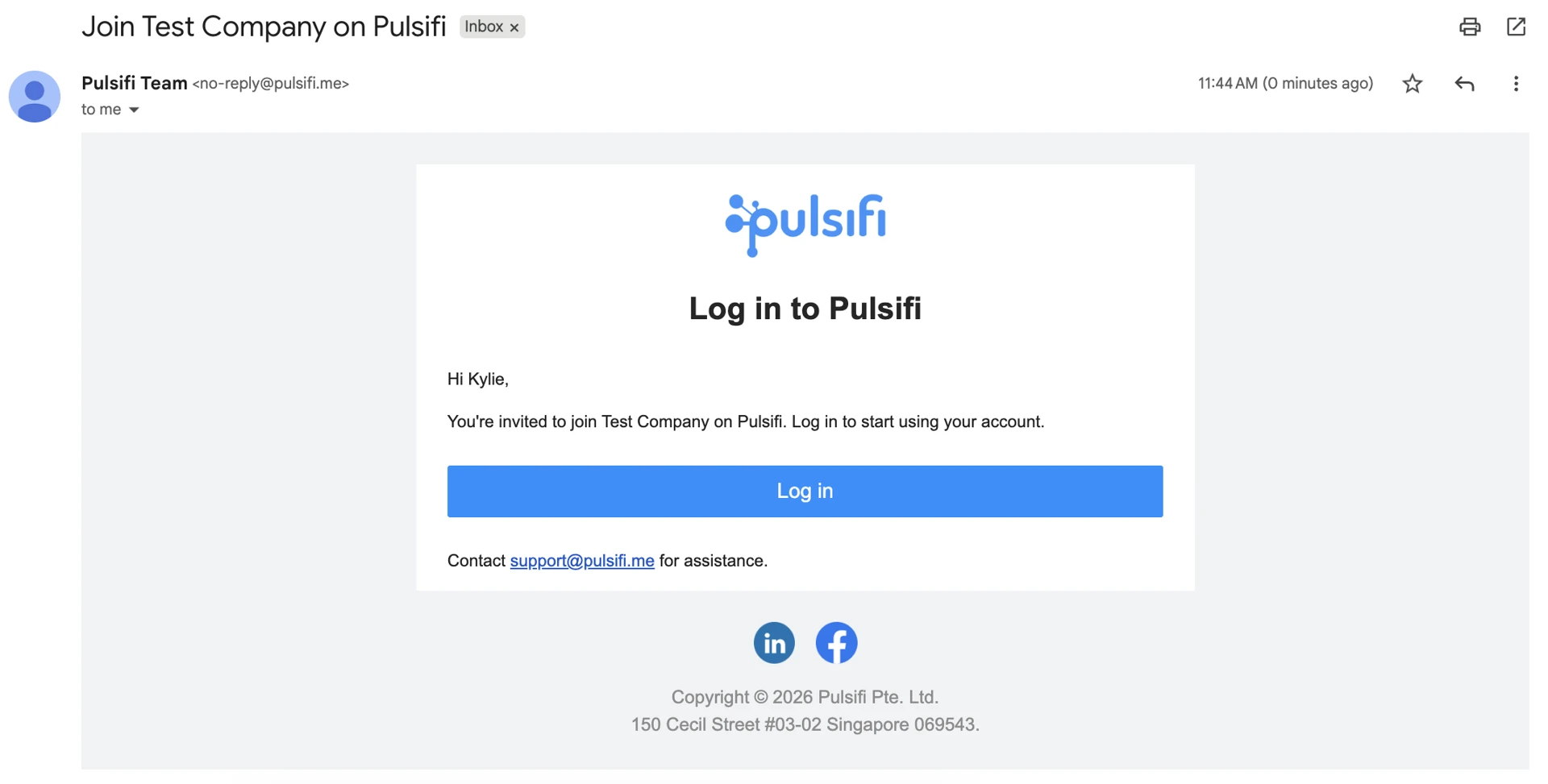

Click Log in in the email.
You will be redirected to the Pulsifi login page. Your email address is pre-filled.
Click Continue.
If you are already signed in to your company account, you will be logged in automatically and taken to the Pulsifi homepage.
If you are not signed in, you will be redirected to your company’s login page. Enter your company credentials, then you will be redirected back to the Pulsifi homepage.
2.2 First-Time Login (Non-SSO Users - Password Required)
If your organization does not use SSO, you will log in using a temporary password sent to your work email. You will then create a new Pulsifi password.
Steps
Open the welcome email sent from your company via Pulsifi, which contains a temporary password.
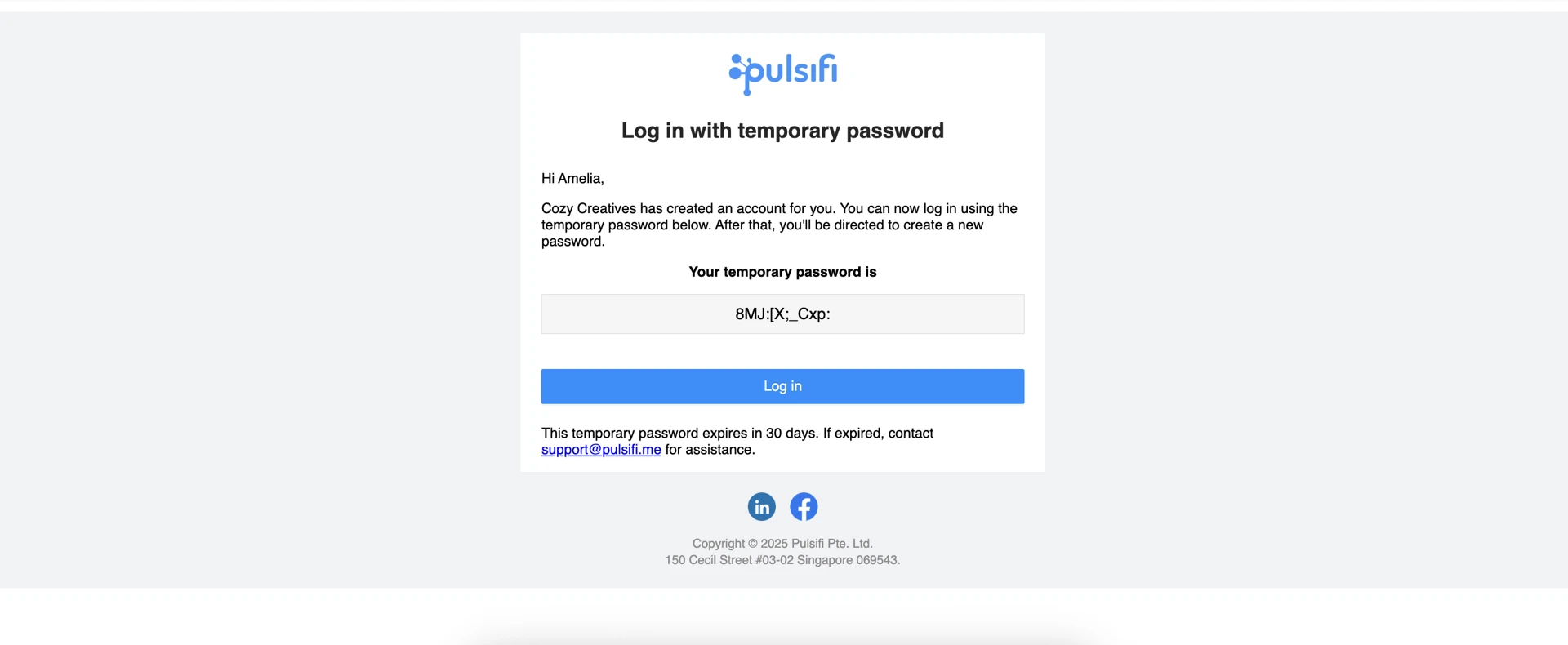

Click Log in in the email.
You will be redirected to the Temporary Password screen.
The email is pre-filled and cannot be changed.
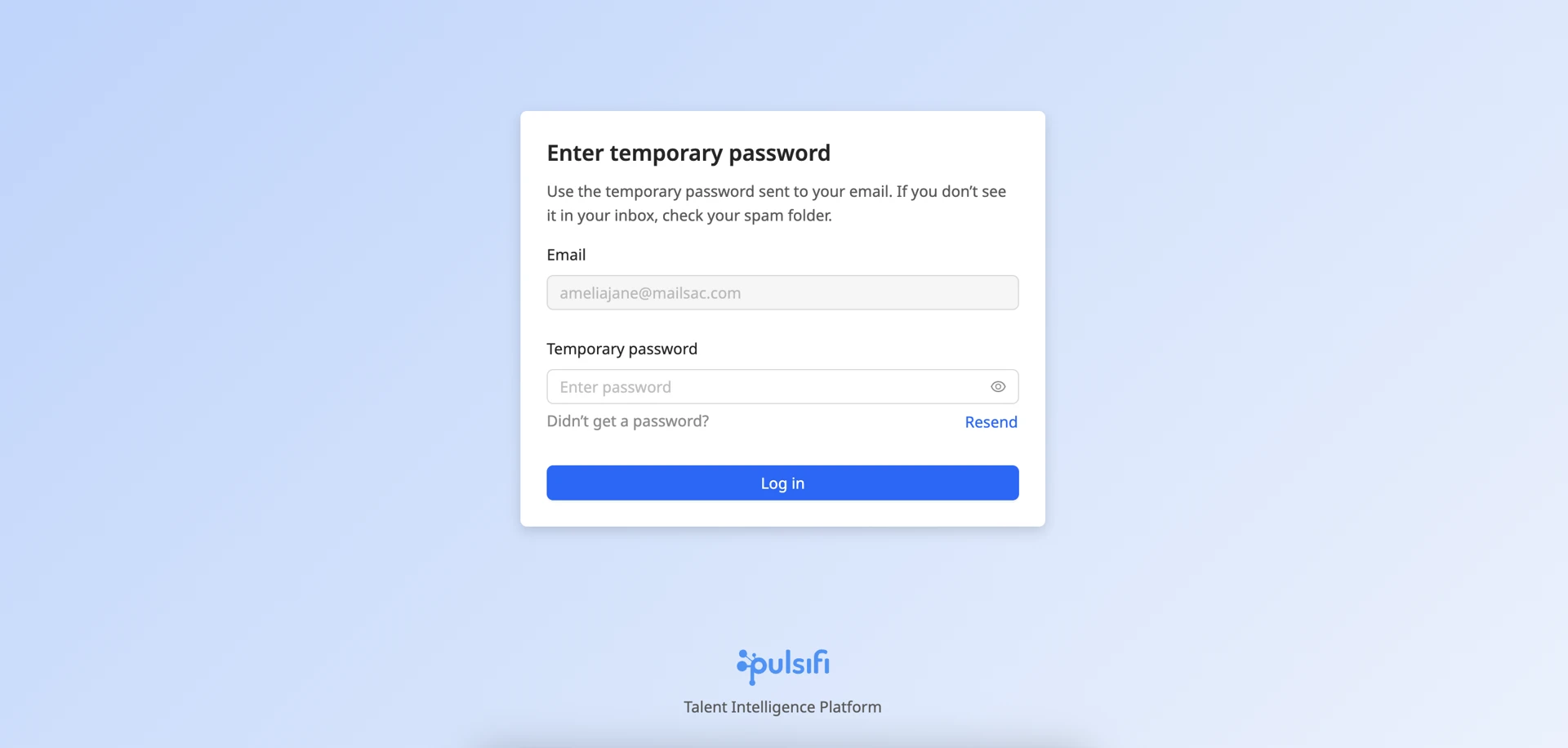

Enter the temporary password provided in the email and click Log in.
Create a new password:
Enter new password
Confirm password
Click Set Password
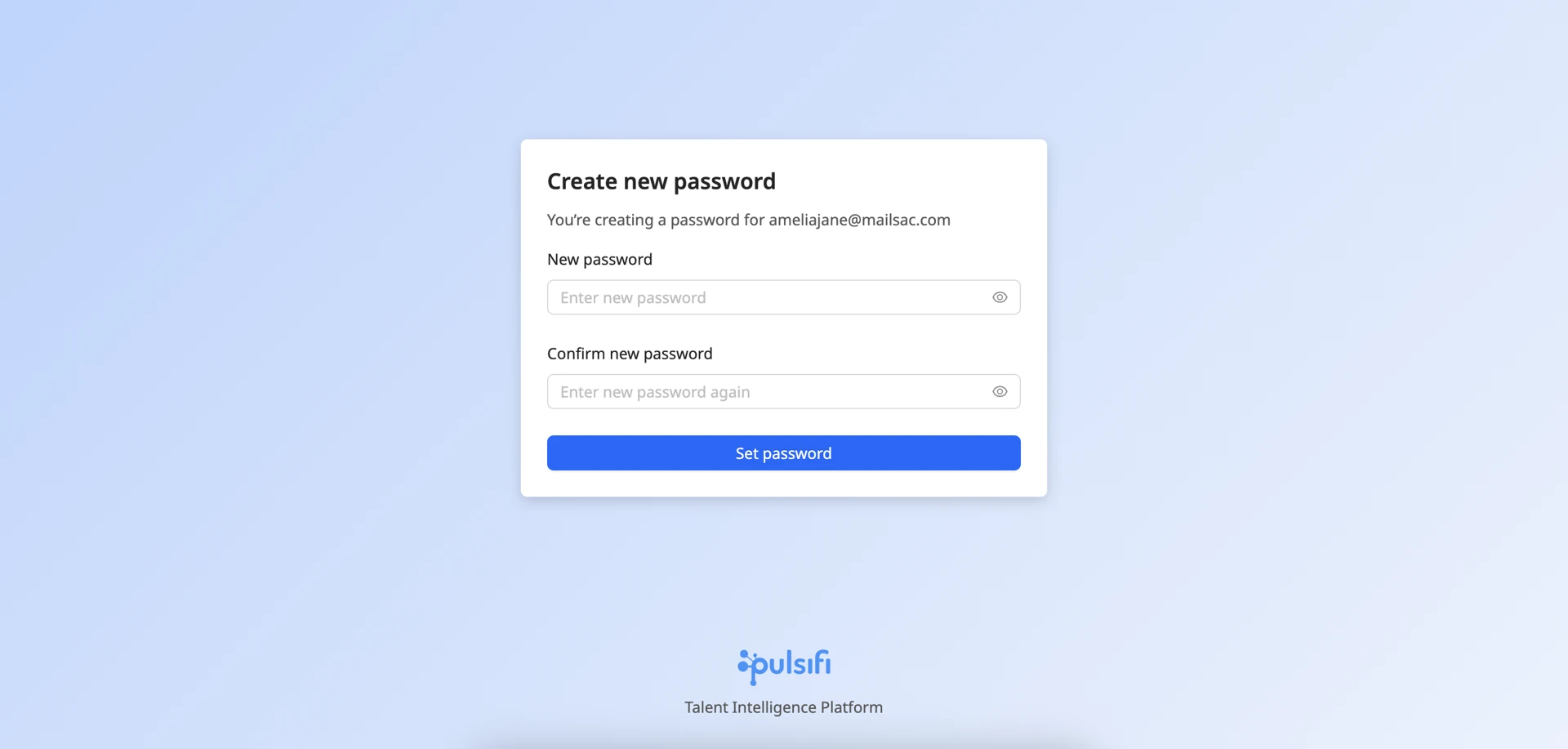

After successful login, you will be redirected to the Pulsifi homepage.
2.3 First-Time Login (Non-SSO Users with Two-Factor Authentication)
Some accounts require Two-Factor Authentication (2FA) for extra security. This is in addition to your password.
Steps
After setting your password, a QR code will appear on screen.
Scan it using any authenticator app (e.g., Google Authenticator or Microsoft Authenticator).
Enter the 6-digit code from the app.
Click Verify.
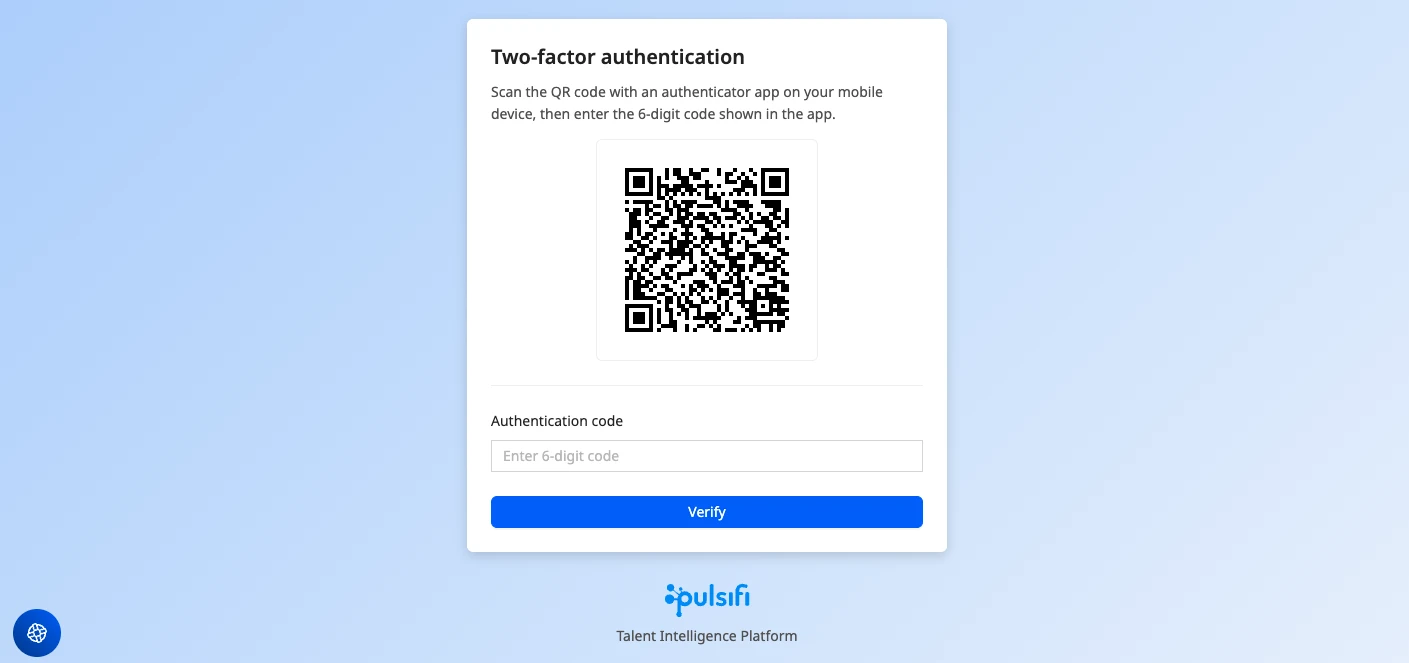

Once verified, you will be logged in to the Pulsifi homepage.
3. Log In (After Setup)
3.1 SSO Users - Passwordless
Steps
Go to the Pulsifi login page.
Enter your email address and click Continue.
If you are already signed in to your company account, you will be logged in automatically.
If not, you will be redirected to your company’s login page before returning to Pulsifi.
3.2 Non-SSO Users - Password Required
Steps
Go to the Pulsifi login page.
Enter your email address and click Continue.
Enter your password.
Click Log in.
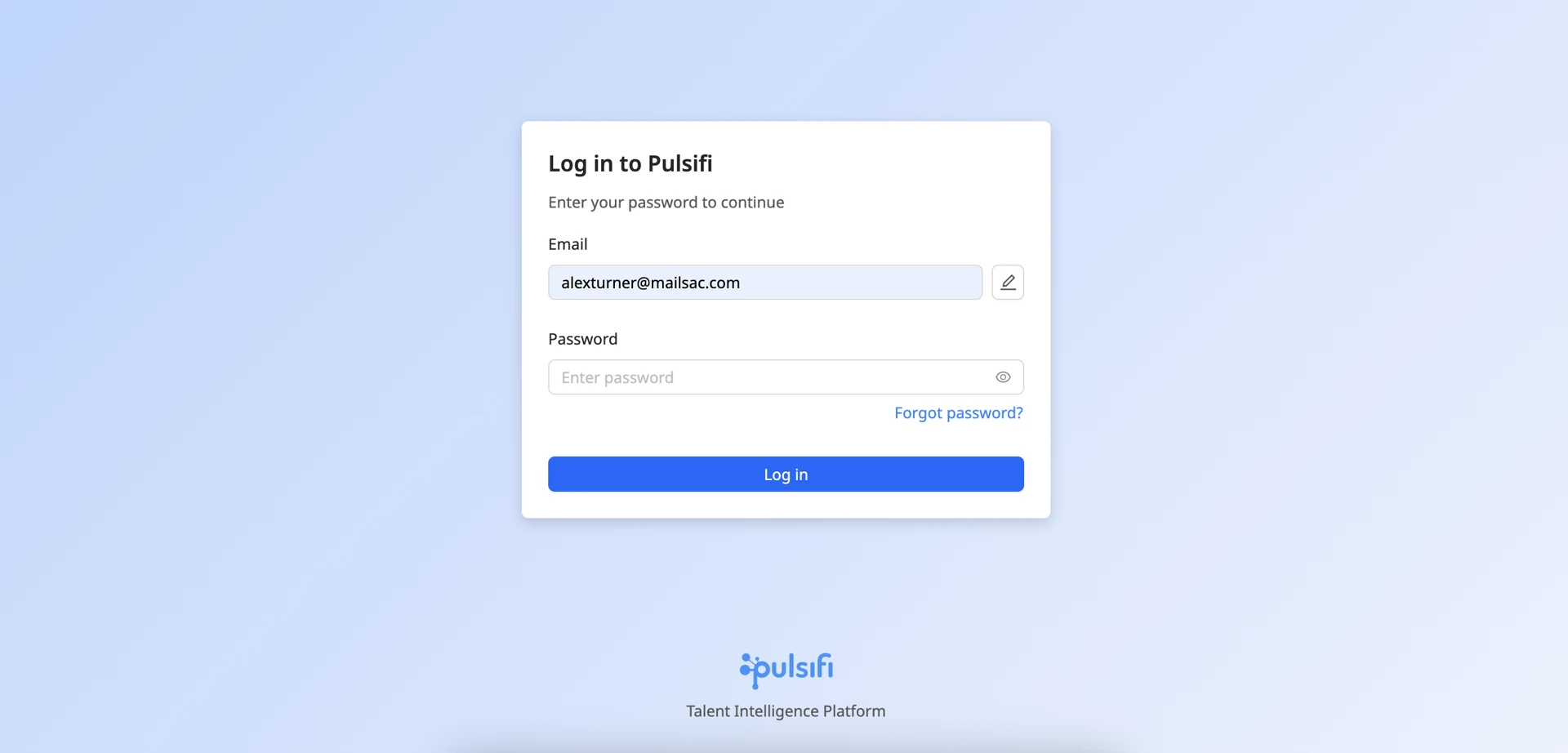

If you’ve forgotten your password, click Forgot Password to reset it. (Refer to Section 1)
3.3 Non-SSO Users with 2FA
Steps
Enter your email address and password.
Enter the 6-digit code from your authenticator app.
Click Verify.
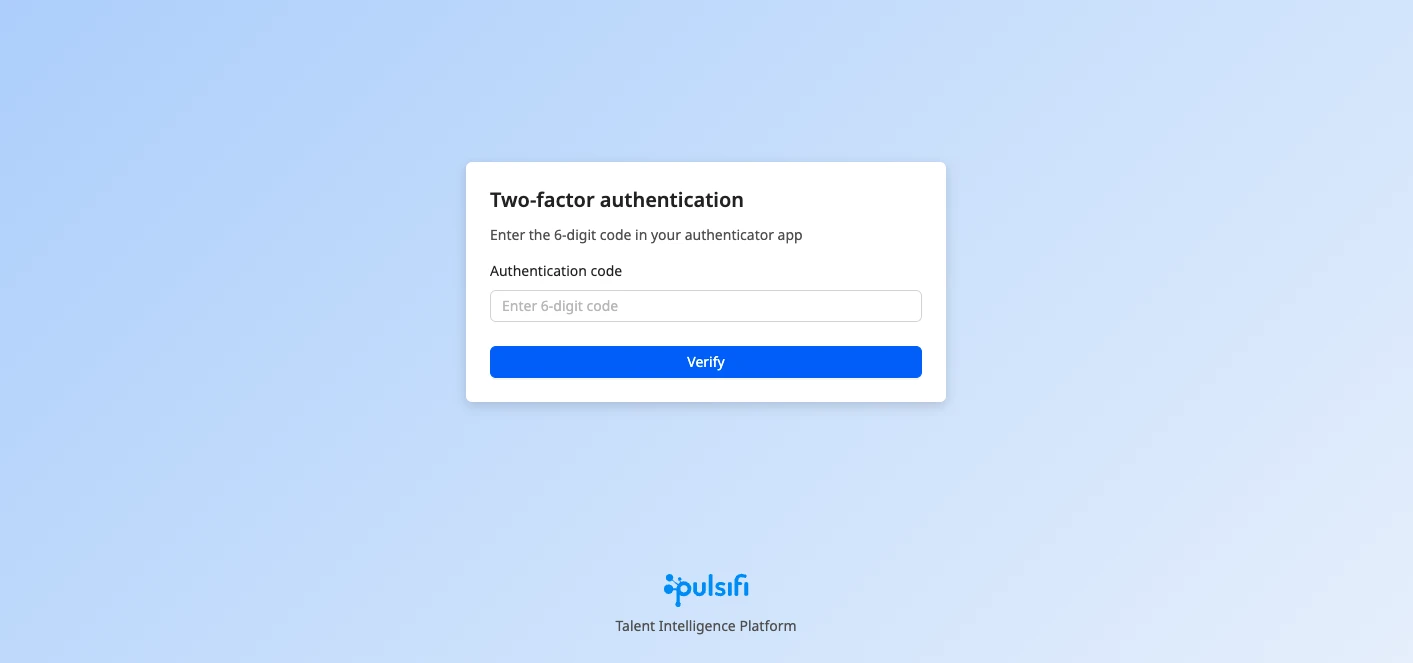

You will then be logged in to the Pulsifi homepage.
4. Changing Your Password (While Logged In)
You can update your password at any time.
Steps
Open your user menu.
Click Change Password.
Enter:
Current password
New password
Confirm new password
Click Set Password.
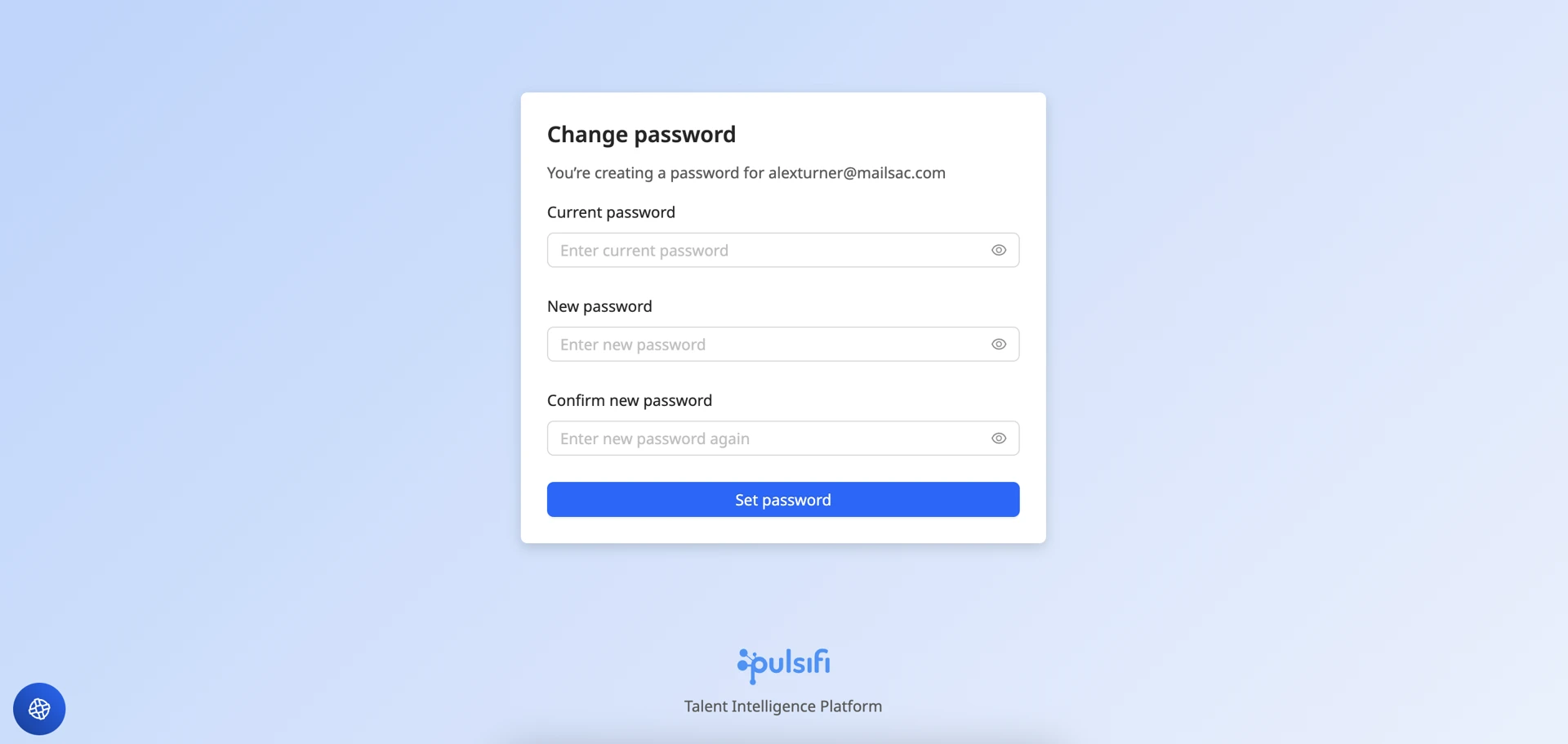

Your password will be updated immediately, and you remain logged in.
5. Password Update Required (90-Day Policy)
For security, some users are required to update their password every 90 days.
Steps
After logging in, you will be prompted to change your password.
Follow the instructions to set a new password.
You will be redirected to the Pulsifi homepage.
Need Help?
If you’re unable to log in:
Make sure you are using your registered work email address (the one that received the Pulsifi invitation)
Reset your password by following Section 1 (for email and password users)
If your organization uses SSO, make sure you sign in using your company account credentials.
If the issue persists:
Try again from the login page, or
Contact us at support@pulsifi.me for assistance.
We’re here to help!
Was this article helpful?
That’s Great!
Thank you for your feedback
Sorry! We couldn't be helpful
Thank you for your feedback
Feedback sent
We appreciate your effort and will try to fix the article